This article explains how to find your website's error logs and access logs in cPanel. These logs help you troubleshoot broken pages, missing files, and other issues on your website.
Note: cPanel is only available with managed server plans, not with standard web hosting plans.
What you need
- A managed server plan with cPanel access.
- Your cPanel login credentials.
View error logs
The error log shows the most recent entries from your website's Apache error log. This is useful for finding broken links, missing files, PHP errors, and permission problems.
- Log in to cPanel.
- Scroll down to the Metrics section.
- Click Errors.
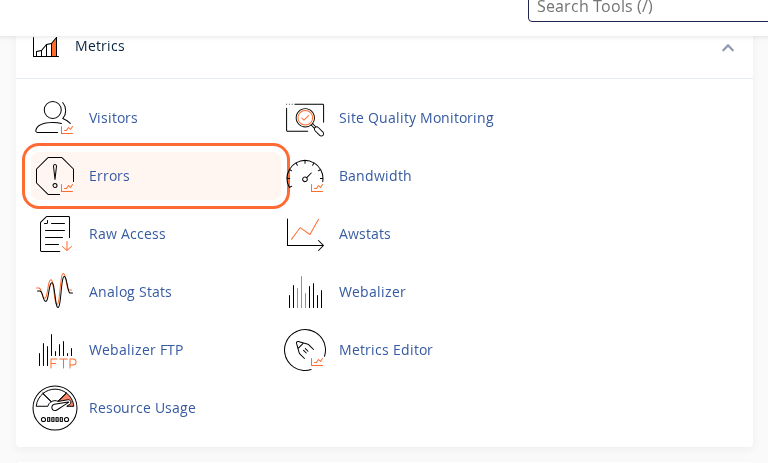
You will see two sections:
Latest web server error log messages
This shows the most recent Apache errors for your website in reverse chronological order. Each entry includes a timestamp, the error type, and a description of what went wrong.
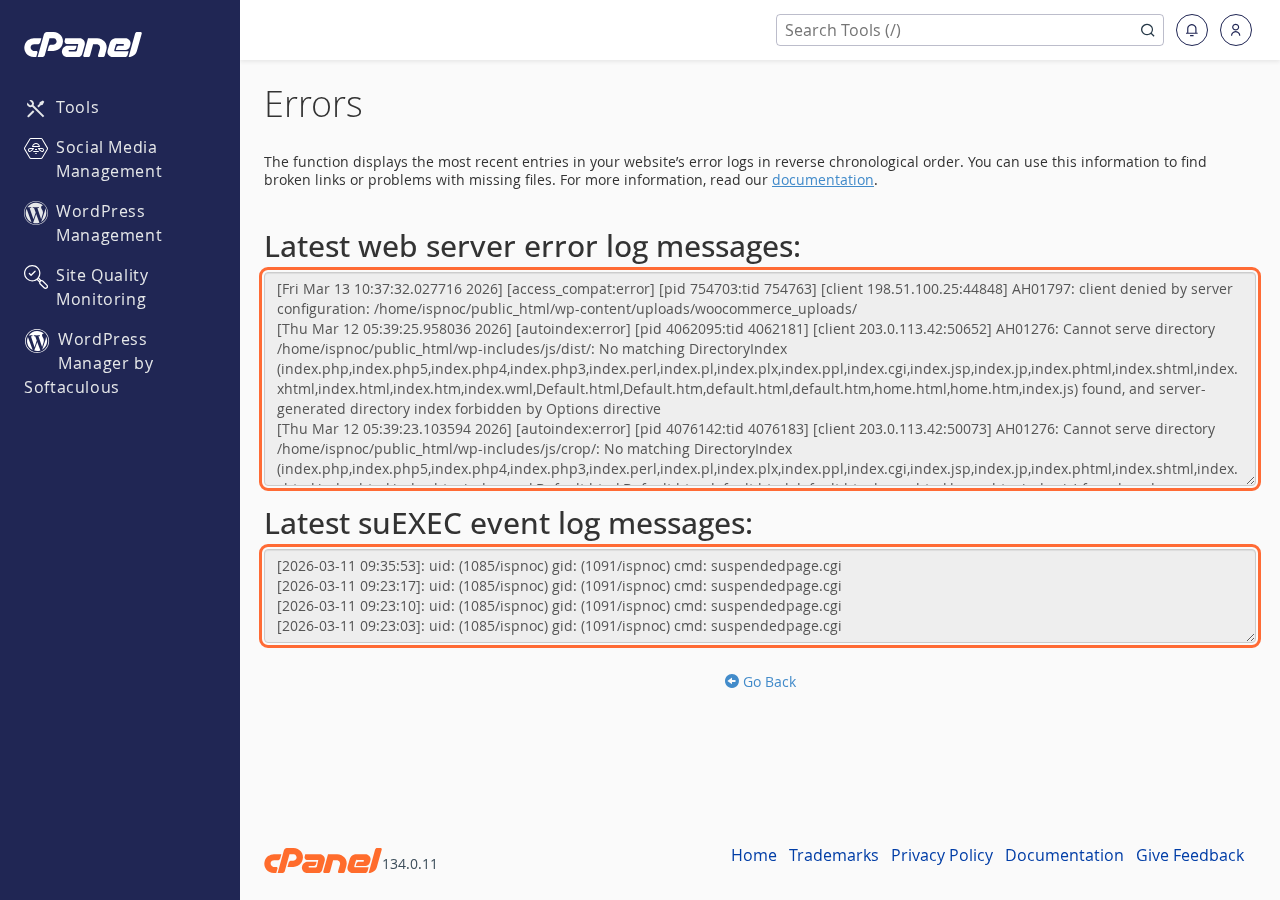
Latest suEXEC event log messages
This shows recent suEXEC events. These relate to scripts executed under your user account. You usually do not need to worry about these unless you are troubleshooting CGI scripts.
View access logs
Access logs show who has visited your website, including the pages they requested, their IP address, and the time of the visit. You can download these logs as compressed files.
- Log in to cPanel.
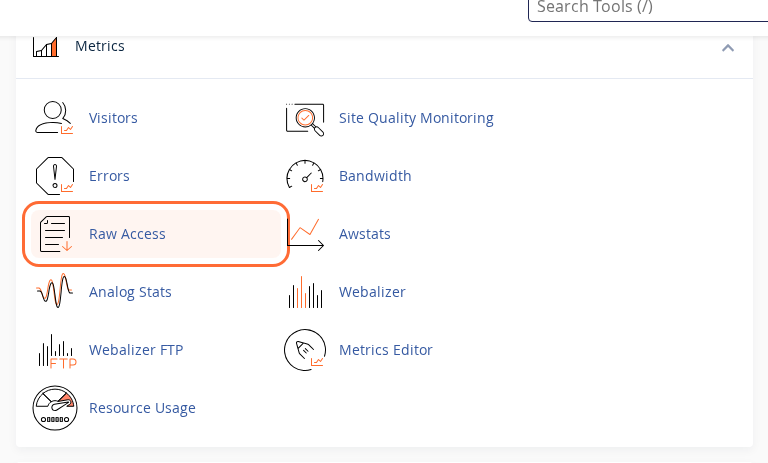
- Scroll down to the Metrics section.
- Click Raw Access.
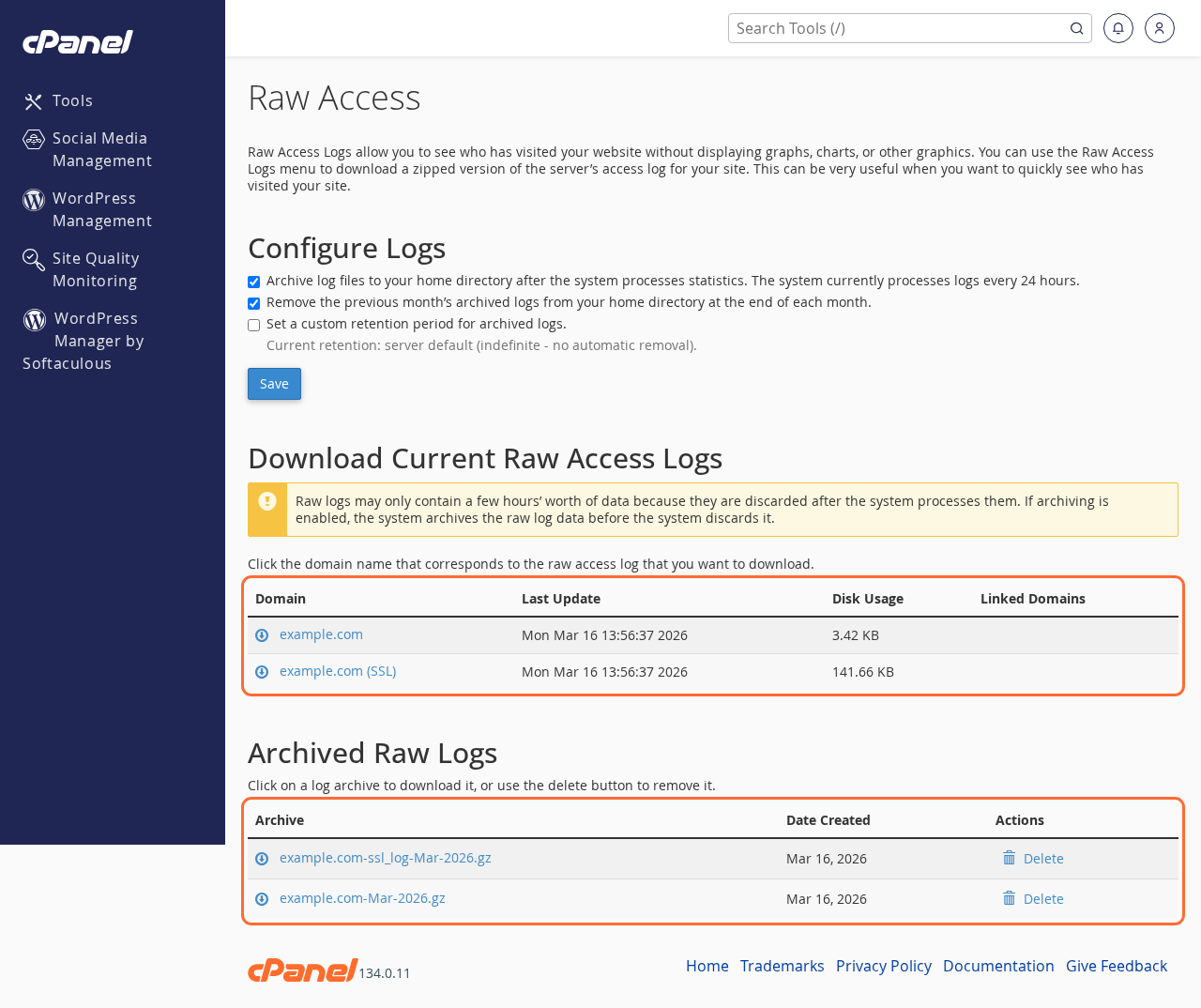 The Raw Access page has three sections:
Configure Logs
Here you can choose whether to archive your logs and for how long. By default, cPanel archives logs to your home directory every 24 hours and removes the previous month's logs at the end of each month.
Download Current Raw Access Logs
Click a domain name to download the current raw access log for that domain. Note that current logs may only contain a few hours of data, because the system regularly processes and discards them.
Archived Raw Logs
Previously archived logs are listed here as compressed .gz files. Click an archive to download it. You can open .gz files with tools like 7-Zip (Windows), The Unarchiver (Mac), or gunzip on the command line.
Using the search bar
You can also find these tools quickly by using the search bar at the top of cPanel. Type errors or raw access and click the matching result.
What to look for in the logs
Common error log entries
File does not exist— A visitor or your site tried to load a file that is not on the server. Check for broken links or missing images.Permission denied— The server cannot read a file or folder. Check that your file permissions are correct (typically 644 for files, 755 for folders).Cannot serve directory— The server cannot find a default index file (likeindex.htmlorindex.php) in a directory.
Reading access log entries
Each line in an access log contains the visitor's IP address, the date and time, the requested page, the HTTP status code, and the browser information. A status code of 200 means success, 404 means the page was not found, and 500 means there was a server error.
Need help?
If you see errors you do not understand, contact our support team and include the relevant log entries. We are happy to help you figure out what is going on.